









 Ruby
Ruby
 Golang
 .Net
.Net
 MCP
MCP
 C++
C++





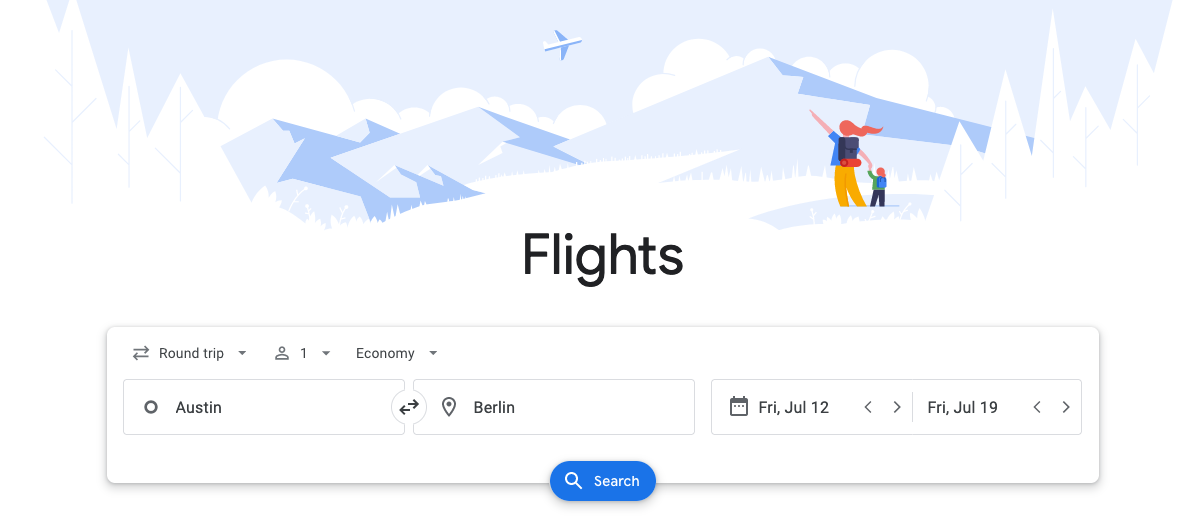
Google Flights is Google's free flight search service, part of the Google Travel platform. It aggregates flights from multiple airlines so travelers can search by departure and destination, compare prices across carriers, track fares, and book tickets in one place.
That aggregated data is exactly what makes Google Flights worth scraping. If you want to build or research flight prices, routes, and availability, scraping Google Flights gives you a rich, continuously updated data source. SerpApi's Google Flights API lets you pull it as structured JSON in Python, JavaScript, or any programming language of your choice, without maintaining your own Google Flights scraper.
Who Needs the Scraped Google Flights Data?
Travel agencies and online travel businesses use it for market analysis and competitive intelligence. They can track competitors' pricing strategies, route popularity, and demand trends. With that visibility, they can adjust their own fares and offers to stay competitive.
Developers use it to build flight comparison platforms, fare trackers, and AI travel assistants. All of these need live prices, routes, and availability. The API supplies that data on demand, so there's no fragile in-house flight scraper to build or maintain.
Available Data on the Google Flights API
Before scraping, it helps to understand the structure of the data returned.
Flight Results
A response is organized into two main arrays:
best_flights: The top options for your search. Google Flights doesn't show a "best" section for every search, so this array isn't always present. When it's missing, every option is inother_flights.other_flights: The remaining options, in the same structure.
Each entry contains a list of individual flights with:
- Departure and arrival airports and times
- Duration, airplane model, airline, travel class, and flight number
- Layover details (duration, and whether it's overnight)
- The journey's
total_duration, carbon emissions data, andprice - An
extensionsarray of flight features, andticket_also_sold_by - A
departure_token(used to fetch the return legs of a round trip)
Full field-by-field detail is in the Google Flights API documentation.
Price Insights
Each response also carries a price_insights object, so you can tell whether a fare is a good deal:
lowest_price: The cheapest ticket among the optionsprice_level: The affordability tier for that pricetypical_price_range: A[low, high]array of expected prices for the routeprice_history: Timestamped price points, ideal for a price-tracking chart
More detail in the price insights documentation. We'll read these fields in the Scrape flight prices section.
Basic Google Flights Data Scraping
You can get structured Google Flights data with a single GET request using SerpApi's Google Flights API.
Prefer to watch? Here's a quick walkthrough of scraping Google Flights with the API:
Setting Up a SerpApi Account
SerpApi offers a free plan for newly created accounts. Head to the sign-up page to register an account and complete your first search with our interactive playground.
When you want to do more searches with us, please visit the pricing page.
Once you are familiar with the results, you can call the API with your API key.
Search by Airport Code
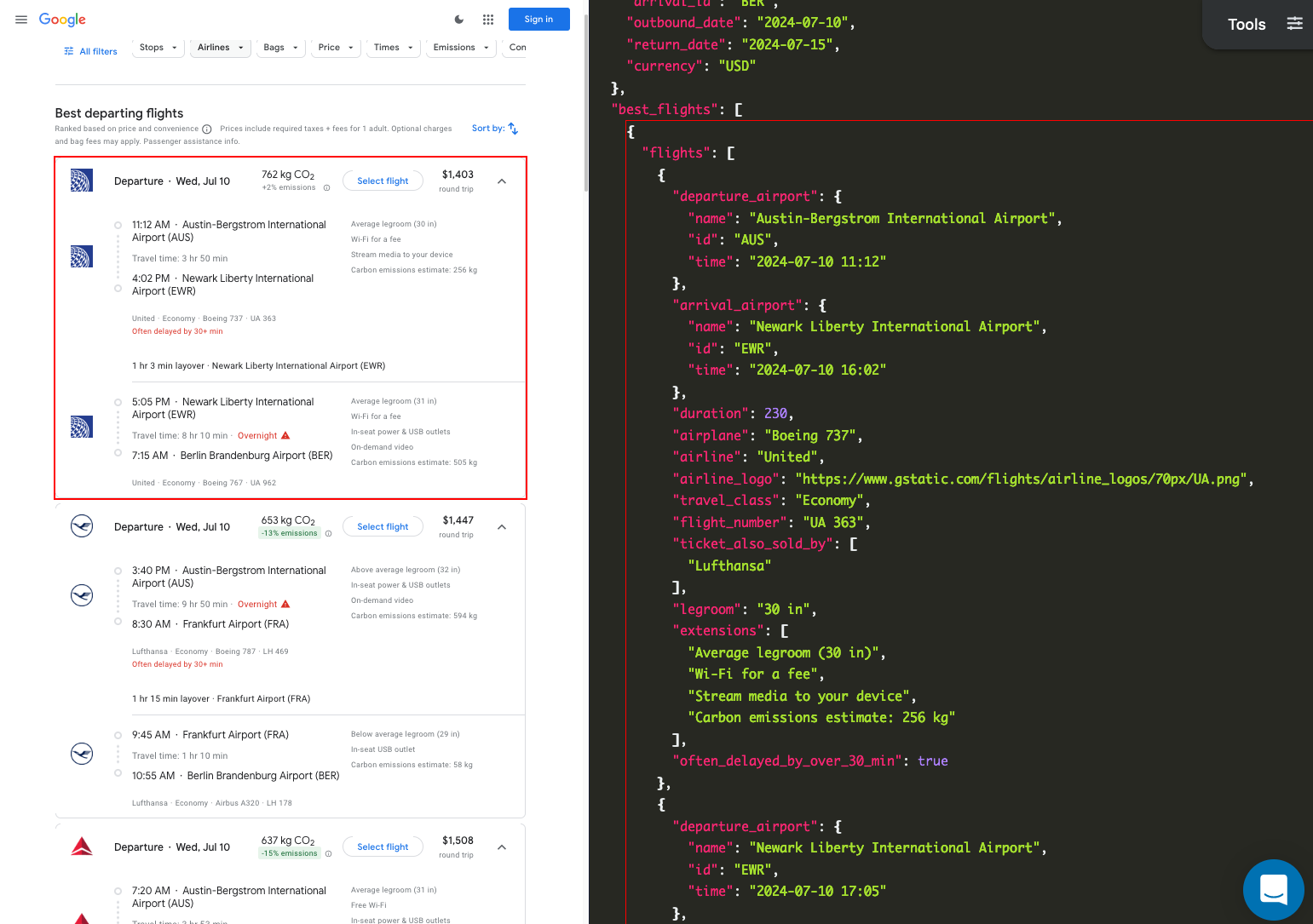
Search a route by IATA airport code (find codes on IATA's site or Google Flights).
Let's find the best flights from Austin to Berlin. Each option includes its price, total_duration, type, and the list of flights that make up the trip.
GET request
The simplest way to see the data is a plain URL:
https://serpapi.com/search.json?engine=google_flights&departure_id=AUS&arrival_id=BER&outbound_date=2027-02-10&return_date=2027-02-17&api_key=YOUR_API_KEYBy default, you get JSON. Add output=md (or use the /search.md endpoint) to get the same data as Markdown, which is more token-efficient when you feed results to an LLM or AI agent:
https://serpapi.com/search.json?engine=google_flights&departure_id=AUS&arrival_id=BER&outbound_date=2027-02-10&return_date=2027-02-17&output=md&api_key=YOUR_API_KEYcURL implementation
To test the API from the command line:
curl --get https://serpapi.com/search \
 -d api_key="YOUR_API_KEY" \
 -d engine="google_flights" \
 -d departure_id="AUS" \
 -d arrival_id="BER" \
 -d outbound_date="2027-02-10" \
 -d return_date="2027-02-17"
Python Implementation
First, install the SerpApi client library:
pip install serpapiGet your API key from your SerpApi dashboard and store it as an environment variable (export SERPAPI_API_KEY=your_key). Then run a basic search:
import os
import serpapi

client = serpapi.Client(api_key=os.environ["SERPAPI_API_KEY"])

params = {
    "engine": "google_flights",
    "departure_id": "AUS",
    "arrival_id": "BER",
    "outbound_date": "2027-02-10",
    "return_date": "2027-02-17",
    "currency": "USD",
    "hl": "en",
}

results = client.search(params)
print(results)
The results object behaves like a regular dictionary, so you can read fields straight off it.
Let's say you only want the price, total duration, type, and number of flights from each option. Read best_flights, and fall back to other_flights when Google Flights doesn't return a "best" section:
options = results.get("best_flights") or results.get("other_flights", [])

for item in options:
    print("Price:", item.get("price"))
    print("Total duration (min):", item.get("total_duration"))
    print("Type:", item.get("type"))
    print("Number of flights:", len(item.get("flights", [])))
    print("-" * 20)
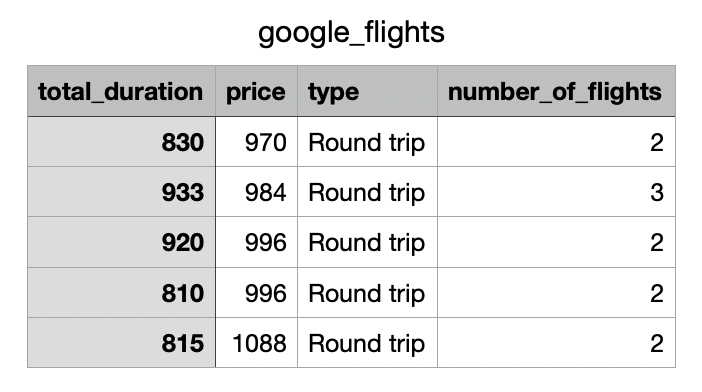
Finally, let's export the data to a CSV file for easier analysis.
import csv

header = ["total_duration", "price", "type", "number_of_flights"]

with open("google_flights.csv", "w", encoding="UTF-8", newline="") as f:
    writer = csv.writer(f)
    writer.writerow(header)
    for item in options:
        writer.writerow([
            item.get("total_duration"),
            item.get("price"),
            item.get("type"),
            len(item.get("flights", [])),
        ])

print("Data exported to google_flights.csv")
The result:
JavaScript Implementation
Install the serpapi package:
npm install serpapiRun a basic query:
import { getJson } from "serpapi";

const results = await getJson({
  engine: "google_flights",
  api_key: process.env.SERPAPI_API_KEY,
  departure_id: "AUS",
  arrival_id: "BER",
  outbound_date: "2027-02-10",
  return_date: "2027-02-17",
  currency: "USD",
  hl: "en",
});

const options = results.best_flights ?? results.other_flights ?? [];
for (const item of options) {
  console.log(`${item.price} USD — ${item.total_duration} min`);
}
More on the library: serpapi-javascript on GitHub.
Other languages and no-code tools
You can call the API with a plain GET request in any language. Ready-made libraries for Ruby, PHP, Java, Go, and more are listed on SerpApi Integrations.
Prefer no code? See how to build a flight price tracker with Make.com or an AI travel agent with n8n.
Search by city ID
To include every airport in a city, search by city ID instead of an airport code. City IDs can be retrieved with the Google Maps API:
params.update({"departure_id": "/m/04jpl", "arrival_id": "/m/07dfk"})
results = client.search(params)
Customize the Flight Search
The API exposes the same controls you'd use on Google Flights itself. Add any of these to the params dict from the basic search, then run client.search(params) again.
Round-trip vs. one-way
Set type to 1 for a round trip (default), 2 for one-way, or 3 for multi-city. A round trip needs a return_date:
params.update({
    "type": "1",
    "outbound_date": "2027-02-10",
    "return_date": "2027-02-17",
})
For a multi-city trip, set type to 3 and describe each leg in multi_city_json, a JSON string with a departure_id, arrival_id, and date per leg:
import json

legs = [
    {"departure_id": "AUS", "arrival_id": "BER", "date": "2027-02-10"},
    {"departure_id": "BER", "arrival_id": "CDG", "date": "2027-02-14"},
    {"departure_id": "CDG", "arrival_id": "AUS", "date": "2027-02-18"},
]

multi_city = client.search({
    "engine": "google_flights",
    "type": "3",
    "multi_city_json": json.dumps(legs),
    "currency": "USD",
})
Multi-city searches are where results are most likely to differ from the browser. See Get results that match your browser below.
Retrieving the returning flights
A round-trip search returns only the outbound flights first. Each outbound flight carries its own departure_token, which you pass back to get that flight's return options:
params.update({
    "type": "1",
    "departure_token": "PASTE_DEPARTURE_TOKEN_FROM_PREVIOUS_RESPONSE",
})
(This is the Google Flights equivalent of pagination. You drill into a flight rather than page through a list.)
Scrape flight prices and price insights
Prices are usually the whole point of a flight price scraper. Every response carries the fare on each option plus the price_insights object described in the data structure.
import os
import serpapi

client = serpapi.Client(api_key=os.environ["SERPAPI_API_KEY"])

results = client.search({
    "engine": "google_flights",
    "departure_id": "JFK",
    "arrival_id": "LHR",
    "outbound_date": "2027-02-10",
    "return_date": "2027-02-17",
    "currency": "USD",
})

insights = results.get("price_insights", {})
print("Lowest price:", insights.get("lowest_price"))
print("Price level:", insights.get("price_level"))            # e.g. "low", "typical", "high"
print("Typical range:", insights.get("typical_price_range"))  # [low, high]

# The fares from the results themselves
for item in results.get("best_flights") or results.get("other_flights", []):
    print(item.get("price"), "-", item.get("total_duration"), "min")
Because the response is already structured, you can scrape flight prices by reading fields, with no HTML parsing or broken selectors. To watch a route over time, run the same request on a schedule and store lowest_price and price_history on each run. For a no-code version, see our flight price tracker built with Make.com.
Cabin class
travel_class: 1 Economy (default), 2 Premium economy, 3 Business, 4 First.
params.update({"travel_class": "3"}) # BusinessFilter by airline
exclude_airlines drops carriers, while include_airlines keeps only the ones you name (comma-separated). The two can't be combined:
params.update({"exclude_airlines": "MH,EY"}) # or {"include_airlines": "QF"}Stops, duration, and other filters
Filter by number of stops with stops: 0 any (default), 1 nonstop only, 2 one stop or fewer, 3 two stops or fewer.
params.update({"stops": "1"}) # nonstop onlyAdd any of these to narrow results further:
max_duration: The total trip-time cap in minutes (e.g."1400")layover_duration: Layover range in minutes, two-number string (e.g."250,300")exclude_conns: Exclude a connecting airport by ID (e.g."AUH")outbound_times/return_times: Departure hour ranges (e.g."14,18"= 2–6 PM)max_price: Upper price limit for the whole trip (e.g."600")sort_by:1Top flights (default),2Price,3Departure time,4Arrival time,5Duration,6Emissions
For the full list, check the advanced filter parameters in the documentation.
Flexible dates
Google Flights has no native flexible-date search, but a few lines turn the API into a flexible-date flight scraper. Loop over a window and collect the fares per day:
import os
import serpapi
from datetime import date, timedelta

client = serpapi.Client(api_key=os.environ["SERPAPI_API_KEY"])

def search_flexible_dates(origin, destination, flexible_days, trip_length=7):
    start = date.today() + timedelta(days=30)   # first outbound date to check
    for i in range(flexible_days):
        outbound = start + timedelta(days=i)
        return_date = outbound + timedelta(days=trip_length)

        results = client.search({
            "engine": "google_flights",
            "departure_id": origin,
            "arrival_id": destination,
            "outbound_date": outbound.isoformat(),
            "return_date": return_date.isoformat(),
            "currency": "USD",
            "hl": "en",
            "type": "1",
        })
        print(f"\nOutbound: {outbound} | Return: {return_date}")
        for item in results.get("best_flights") or results.get("other_flights", []):
            for flight in item.get("flights", []):
                print(
                    f"{flight['flight_number']} | "
                    f"{flight['departure_airport']['id']} -> {flight['arrival_airport']['id']} | "
                    f"{flight['airline']} | {item['total_duration']} min | "
                    f"{item['price']} USD"
                )

search_flexible_dates("JFK", "LAX", 3)
Each day in the window is one search, so keep flexible_days small while testing.
Groups of passengers
Tailor results to a group with adults, children, infants_in_seat, and infants_on_lap:
params.update({
    "adults": "3",
    "children": "2",
    "infants_in_seat": "1",
    "infants_on_lap": "1",
})
Get results that match your browser
When using SerpApi's Google Flights API, often the results will look the same as your browser without any additional adjustments. However, when searching for more complicated results such as multi-city or less popular airports, initially it may not look exactly like what you see in your browser window, even when in incognito mode. This doesn't mean the results are wrong or that we can't match them. Let's take a look at what Google is doing behind the scenes.
How Google Flights loads flights
When you run a search on Google Flights in a browser window, initially only a subset of information is loaded. There is work being done in the background as you continue to scroll and navigate the page.
Google Flights doesn't send all the information as soon as you start the search. It uses dynamic data fetching, which means the page initially loads a small, quickly rendered portion of the page. This allows Google Flights to load and give you results quickly.
While in the background, Google is making additional calls to pull in additional airlines, different fares, and cheaper options that weren't initially loaded. Sometimes all of the information may be loaded immediately, however sometimes it takes that extra processing time.
This is why for common airports with simple searches, the results load immediately with no discrepancies. For multi-city searches or airport codes that aren't as popular, it may take a bit longer to load these results. Let's take a look at how to guarantee the results will fully load and match what you have in your browser.
Deep search
Within Google Flights there are many parameters available, including deep_search.
By default, deep_search is set to false. When deep_search is set to false, you can think of it as quick response mode. You will receive regular flight results without additional processing. However, this may also mean you may not get all the fields you would regularly see when searching within a browser.
Set deep_search to true to get fully loaded results. This option ensures each component and result has time to load completely, so the output aligns with what Google Flights displays. Keep in mind, this will increase the time required for each query.
Review the documentation for deep_search.
Comparison: deep_search true or false
Let's look at an example of results where deep_search is set to true compared to deep_search set to false. In this example, we are going to be looking at a search including a flight from Phu Quoc International Airport in Vietnam (PQC) to Austin-Bergstrom International Airport in Texas (AUS). The screenshots below are from a search with the outbound flight on October 8, 2025 and the returning flight on October 22, 2025. The code uses future dates so it runs, so your prices will differ.
import os
import serpapi

client = serpapi.Client(api_key=os.environ["SERPAPI_API_KEY"])

results = client.search({
    "engine": "google_flights",
    "departure_id": "PQC",
    "arrival_id": "AUS",
    "outbound_date": "2027-02-10",
    "return_date": "2027-02-24",
})
Reminder: by default deep_search is set to false, which means in this code example it's set to false. Looking at the results below, we can see different prices as well as a different number of results. Compare deep_search set to true and deep_search set to false:
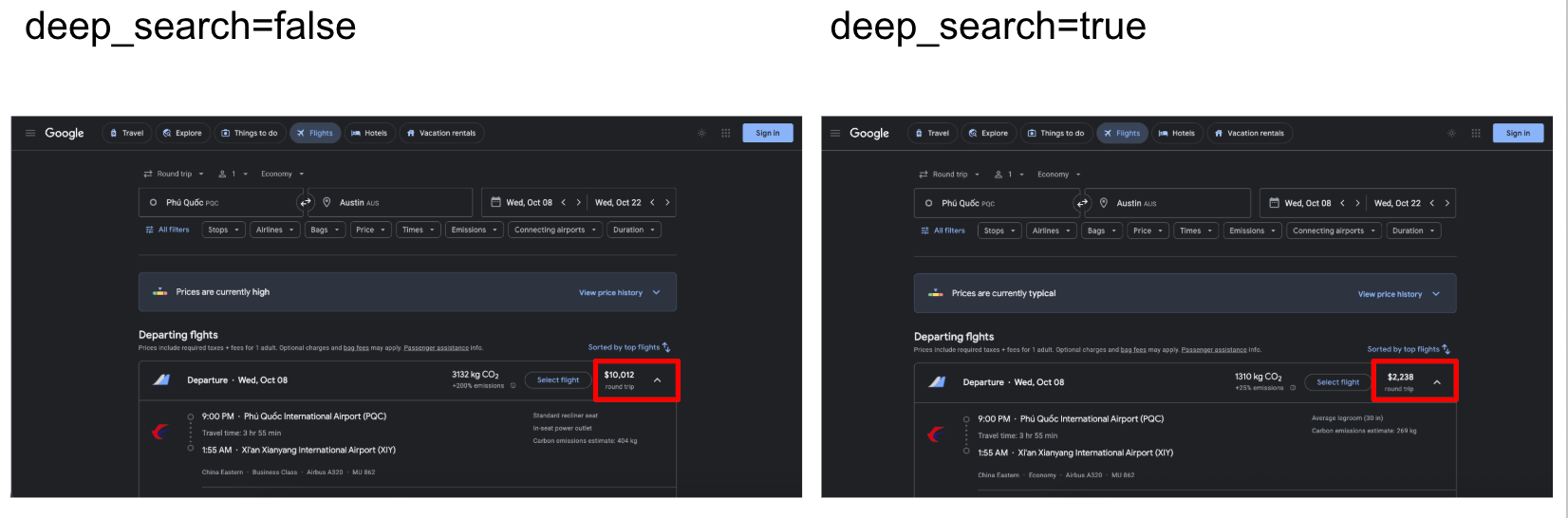
You can see the result where deep_search was set to false has a price of $10,012 vs. the deep_search set to true at $2,238.
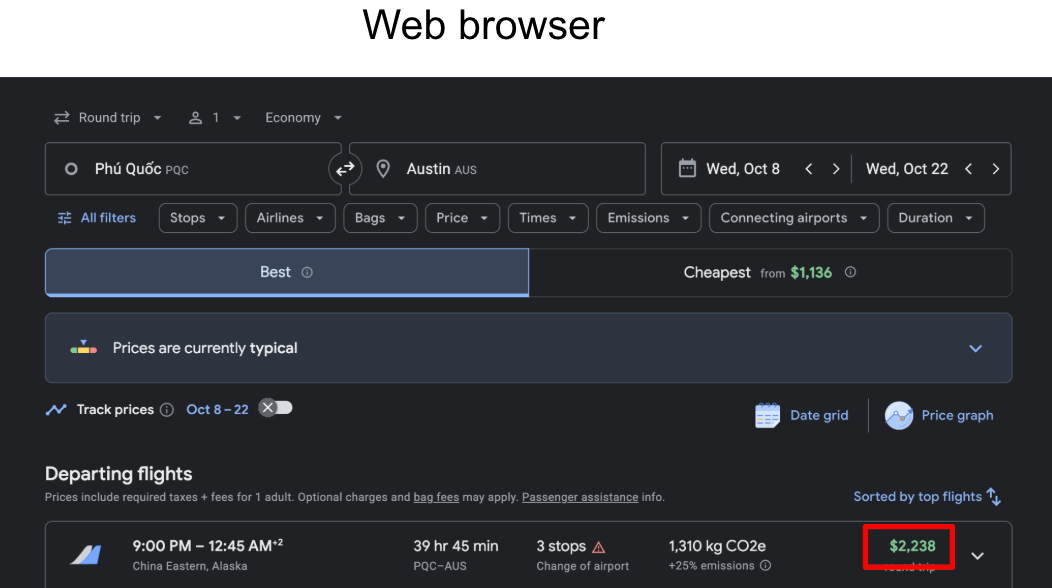
Compared to the web browser in an incognito tab, you can see the top result matches our result from deep_search set to true.
Now that we've identified the benefit of the deep_search parameter, let's explore how to use it.
Enable deep search in your queries
Using the same example as above, we're going to enable the deep_search parameter within our query:
import os
import serpapi

client = serpapi.Client(api_key=os.environ["SERPAPI_API_KEY"])

results = client.search({
    "engine": "google_flights",
    "departure_id": "PQC",
    "arrival_id": "AUS",
    "outbound_date": "2027-02-10",
    "return_date": "2027-02-24",
    "deep_search": "true",
})

print(results.get("other_flights", [])[:1])
You can set any of the parameters you require for your query. You'll notice within the parameters, the only difference between the example above and this example is that deep_search is set to true. That is all you need to do in order to match your results to Google Flights in the browser.
Here is what the output looks like for the first result (trimmed to the first leg):
{
  "other_flights": [
    {
      "flights": [
        {
          "departure_airport": {
            "name": "Phú Quốc International Airport",
            "id": "PQC",
            "time": "2025-10-08 21:00"
          },
          "arrival_airport": {
            "name": "Xi'an Xianyang International Airport",
            "id": "XIY",
            "time": "2025-10-09 01:55"
          },
          "duration": 235,
          "airplane": "Airbus A320",
          "airline": "China Eastern",
          "airline_logo": "https://www.gstatic.com/flights/airline_logos/70px/MU.png",
          "travel_class": "Economy",
          "flight_number": "MU 862",
          "legroom": "30 in",
          "extensions": [
            "Average legroom (30 in)",
            "Carbon emissions estimate: 269 kg"
          ]
        },
        ...
      ],
      "layovers": [
        { "duration": 275, "name": "Xi'an Xianyang International Airport", "id": "XIY", "overnight": true },
        { "duration": 215, "name": "Shanghai Pudong International Airport", "id": "SHA" },
        { "duration": 596, "name": "San Francisco International Airport", "id": "SFO" }
      ],
      "total_duration": 2385,
      "carbon_emissions": {
        "this_flight": 1310000,
        "typical_for_this_route": 1044000,
        "difference_percent": 25
      },
      "price": 2238,
      "type": "Round trip",
      "airline_logo": "https://www.gstatic.com/flights/airline_logos/70px/multi.png",
      "departure_token": "WyJDalJJZEZsZlRqWlJkbGhVVWxsQlJFTnBRMmRDUnkwdExTMHRMUzB0..."
    }
  ]
}
When to use deep search
Depending on your priority, you can decide which option works better for you.
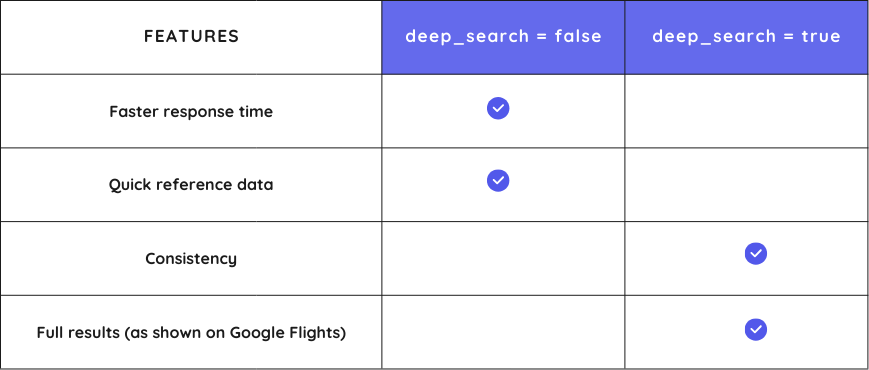
For fast response times and quick reference data, you should leave deep_search at the default value of false.
For consistent, full results that match what you see in your browser on Google Flights, especially for more complex queries, you will want to set deep_search to true. This will take additional time; however, that extra time will be used to wait for Google Flights to load all the details you would see in your browser.
Another option is to use both! For simpler queries, set deep_search to false and receive your results quickly. If the search is more complex, make an additional query using the same parameters, except this time set deep_search to true. This way many of your queries will be fast as well as complete, and when Google Flights needs additional time to load, you can make the additional query for the full results.
For many of your queries to the Google Flights API, you may not need to even worry about deep_search. However, when loading multi-city searches or searches with less common airports, you may need to apply deep_search in order to see results matching the browser.
Bonus: Deals and airport autocomplete
- Hunting for cheap fares specifically? See the Google Flights Deals API and our tutorial: How to Scrape Google Flights Deals.
- Building a search box? The Google Flights Autocomplete API returns airport and city suggestions.
Frequently Asked Questions (FAQs)
Is it legal to scrape Google Flights?
Collecting publicly available data is generally permitted, and using an API like SerpApi keeps you off Google's infrastructure. Always review the applicable terms of service for your use case.
How do I scrape flight prices?
Send a Google Flights API request for your route and read the price on each flight plus the price_insights object (lowest_price, price_level, typical_price_range, price_history). See the scrape flight prices section above for a working example.
How do I scrape Google Flights in Python?
Install the serpapi package (pip install serpapi), create a client with your API key, and call client.search() with engine="google_flights" and your route parameters. The results come back as JSON, so no HTML parsing is required. The full code is in Basic Google Flights Data Scraping.
Why don't my Google Flights API results match the browser?
Google Flights loads results in stages, and the default API response is optimized for speed. For multi-city trips or less common airports, set deep_search to true so the API waits for the full results. See Get results that match your browser.
How much does it cost?
Register at serpapi.com to start for free with 250 searches per month. Paid plans scale with your usage.
Why scrape Google Flights data?
Live flight prices, routes, and availability power price-comparison tools, fare trackers, travel dashboards, and market analysis for travel businesses without maintaining a fragile scraper.
Wrapping Up
That's it! You can now scrape Google Flights end-to-end: set up the API, understand the response, run a basic search, customize it by route, dates, prices, class, filters, and passengers, and get results that match the browser. Experiment for free in the Google Flights playground.
Building a broader travel product? Pair this with our other travel APIs:
Let us know if you have any questions along the way and we are happy to help via chat or email us at contact@serpapi.com.