









 Ruby
Ruby
 Golang
 .Net
.Net
 MCP
MCP
 C++
C++

Connecting SerpApi web search to Claude Desktop gives Claude a live, structured feed of SERP data, including organic ranking positions, People Also Ask, local pack results, Google News, YouTube, Shopping, and more than 100 search engines, all queries from your chat window. And you can set it up without writing a single line of code.
This guide walks through:
- What SerpApi MCP actually gives you that Claude's built-in web search doesn't, and why that matters for marketing work.
- A step-by-step setup tutorial. If you can copy and paste a URL, you can finish it in under five.
Why should you connect SerpApi if LLMs already search the web?
This is the fair first question, and worth answering before you spend five minutes setting anything up.
Claude does have a built-in web search. When you ask it to "look up the best CRMs for small businesses" it will read a few pages and summarize them for you. That's useful for casual research, but there's a difference between browsing the web and using the actual search engines behind it. Claude's built-in search gives you a synthesized answer while SerpApi gives you the structured results page itself, in whichever Google product (or other engine) your question actually lives.
The gap shows up the moment you step beyond plain Google Search. We tested Claude's built-in search against the same queries, and the limits become obvious:
- Google Search. Even on plain web results, Claude's built-in search summarizes pages. It doesn't show you who ranks #1 through #10, what's in the People Also Ask box, which competitor owns the featured snippet, or how the SERP looks differently in Austin vs. London. SerpApi returns those positions and SERP features as structured data.
- Google Flights. Ask Claude's built-in search for "cheapest flights from New York to Tokyo next month" and you'll get a recap of articles about flight prices not actual fare data, dates, airlines, or layovers. SerpApi's
google_flightsengine returns the structured fare results directly. - Google Images. "What does the new product packaging from [competitor] look like?" through built-in search reads pages but can't reliably surface the image grid itself. SerpApi's
google_imagesengine returns the image SERP as data, with source URLs and dimensions. - Google Shopping. Built-in search summarizes review articles; it doesn't return the product carousel with real prices, sellers, ratings, and product IDs. For competitive product research, that's a meaningful gap.
- Google News. Built-in search may pull a few recent headlines, but it doesn't give you the structured news SERP; publishers, exact timestamps, story clusters, which is what brand monitoring actually needs.
- Google Local / Maps. "Top dentists near me" through the built-in search reads aggregator pages. It can't simulate the local pack from a specific city the way SerpApi can with location parameters, which makes multi-city local SEO checks effectively impossible.
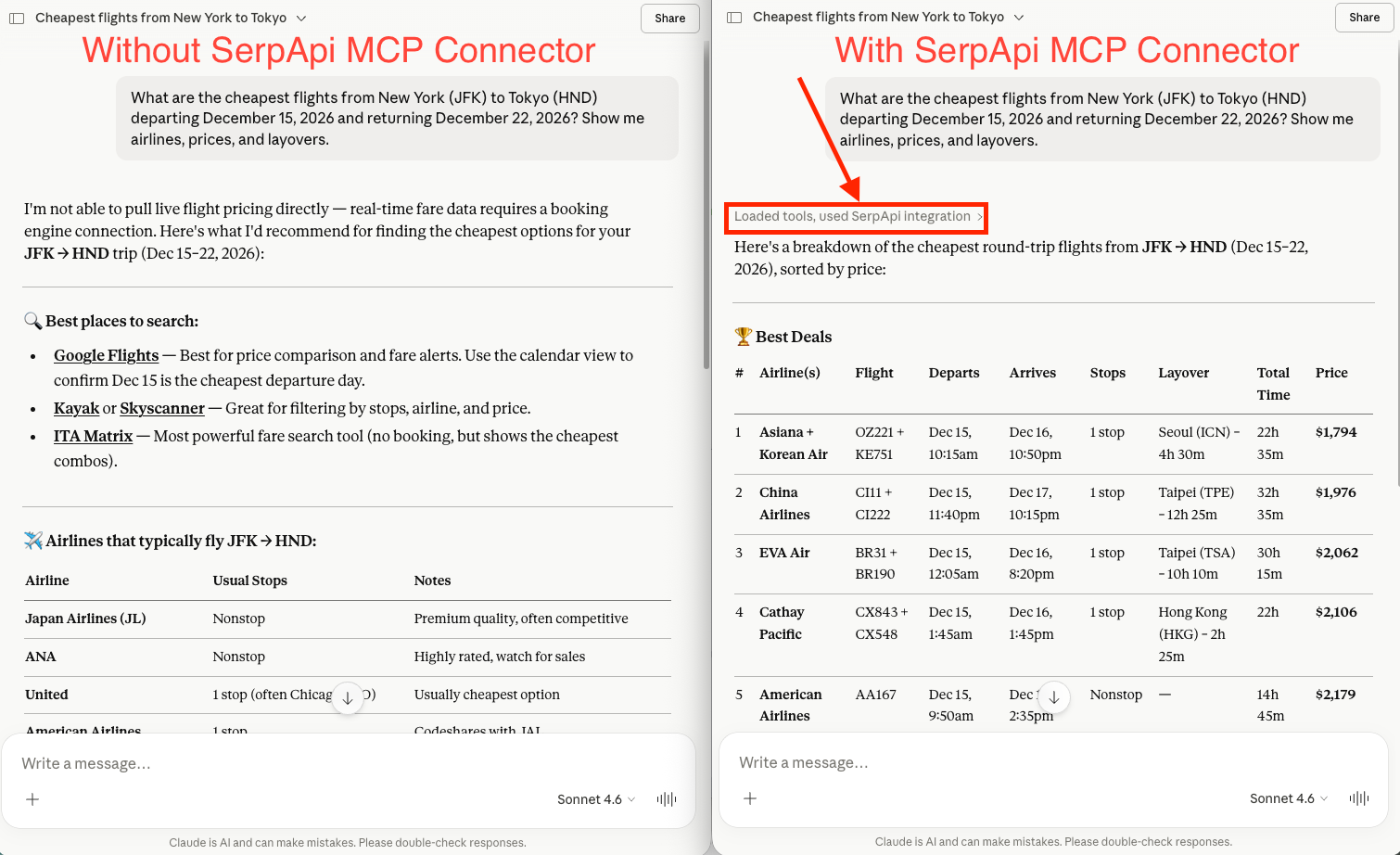
In short:
- Claude's web search tells you what the web says about a topic.
- SerpApi MCP gives you direct, structured access to the search engines such as Google Search, Flights, Images, Shopping, News, Local, plus YouTube, Bing, and dozens of others.
For drafting, brainstorming, and general background research, Claude's built-in search is fine. For anything where the structure of the search results is the actual deliverable. SEO audits, content briefs based on top-ranking pages, competitive position tracking, local SEO checks across multiple cities, brand monitoring on Google News, flight or product price research, image and video research, you need real SERP data, and that's what SerpApi provides.
Prefer to watch it instead? This 4-minute walkthrough covers the same setup, plus a live side-by-side of Claude answering with and without SerpApi MCP connected.
Give your AI Real-Time Data: Connecting Claude to Google Search
What You'll Be Able to Do After This Setup
Once SerpApi MCP is connected, you can ask Claude things that require a real-time SERP structure. Not just web reading:
- "Pull the top 10 organic results for 'project management software' in the US, then group competitors by the angle they use in their meta descriptions and title tags."
- "Check Google News for mentions of [our brand] in the last 7 days and show me the publishers, headlines, and dates."
- "Look up the top 5 YouTube videos for 'SEO for SaaS': give me titles, channels, view counts, and upload dates."
- "Pull every People Also Ask question for 'email marketing automation' plus the related searches at the bottom of the page, and turn them into a content brief."
- "Show me the local pack results for 'dentist near me' simulated from three different cities, and tell me which businesses appear in all three."
Each of these is a real marketing task that Claude's built-in web search can't reliably handle because it depends on the structure of the SERP, not just the content of the pages it links to.
Step-by-step setup
Prerequisites (Two Things, Both Free to Start)
Before we open Claude, make sure you have these:
- Claude Desktop is installed on Mac or Windows. Download it from claude.ai/download if you haven't already.
- A SerpApi account. A free account gives you 205 searches per month, which is plenty to test the workflow. You can sign up at serpapi.com.
That's it. You will not be installing Node.js, Python, or any package manager. We're using SerpApi's hosted MCP server, so SerpApi runs the infrastructure for you.
A quick note on what MCP actually is:
The Model Context Protocol is an open standard that lets AI apps like Claude talk to external tools (search engines, CRMs, databases) without custom-built integrations. If you want a deeper explanation, we wrote a primer here: Model Context Protocol (MCP): A Unified Standard for AI Agents and Tools. For this tutorial, you can treat MCP as "the universal adapter that lets Claude use SerpApi."
Step 1: Grab Your SerpApi API Key
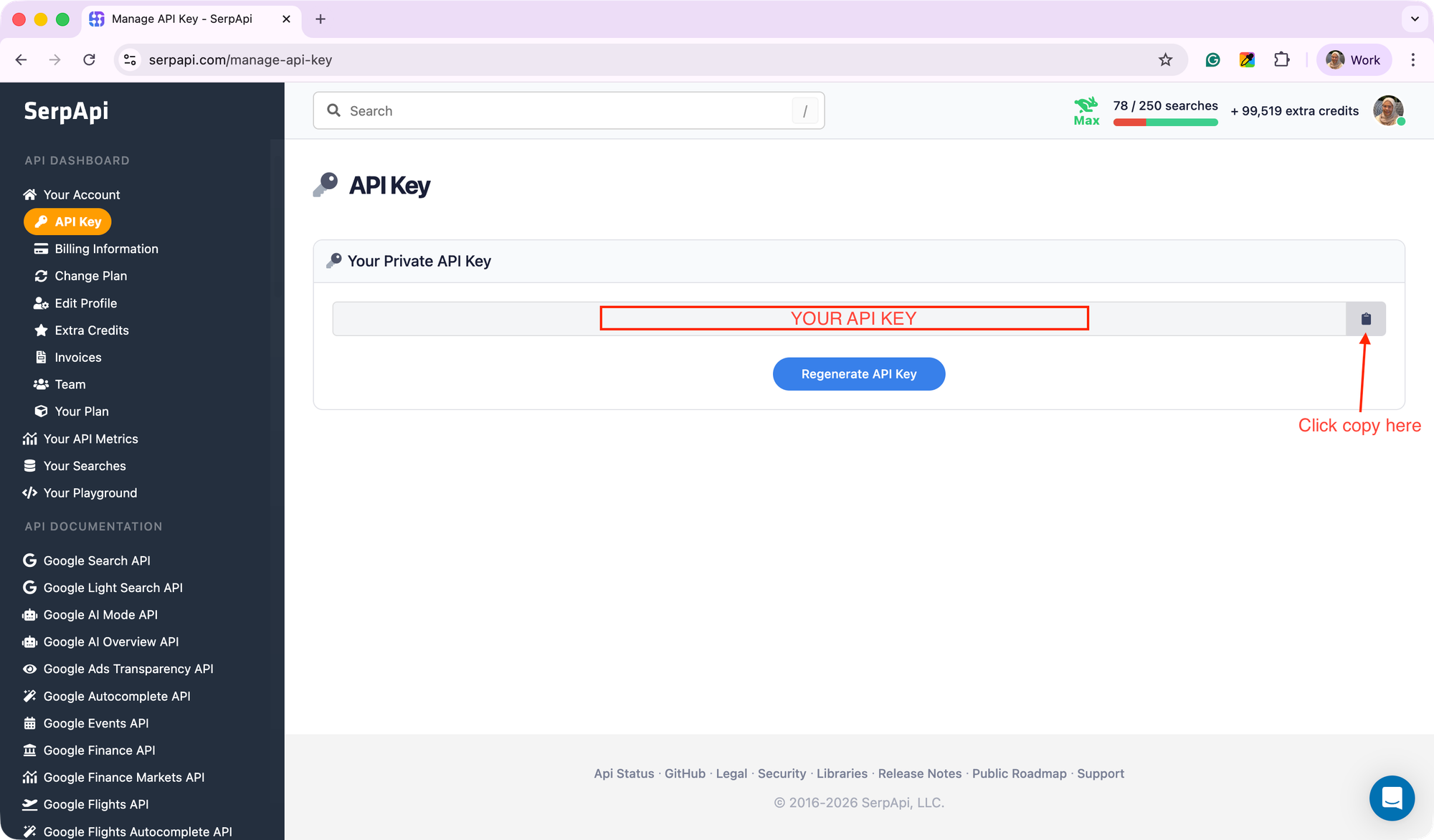
Once you're logged into SerpApi, go to your dashboard at serpapi.com/manage-api-key.
You'll see a long string labeled "Your Private API Key." Click the copy icon next to it and paste it somewhere safe for a moment; you'll need it in Step 3. Treat this key like a password; don't share it publicly.
Step 2: Open the Connectors Screen in Claude Desktop
Launch Claude Desktop. Then:
- In the left sidebar, click Customize.
- Then, click Connectors.
You'll see a list of pre-built connectors (Gmail, Google Calendar, Google Drive, etc.) at the top, and at the bottom of the page there's a button that reads Add custom connector. That's the one we want.
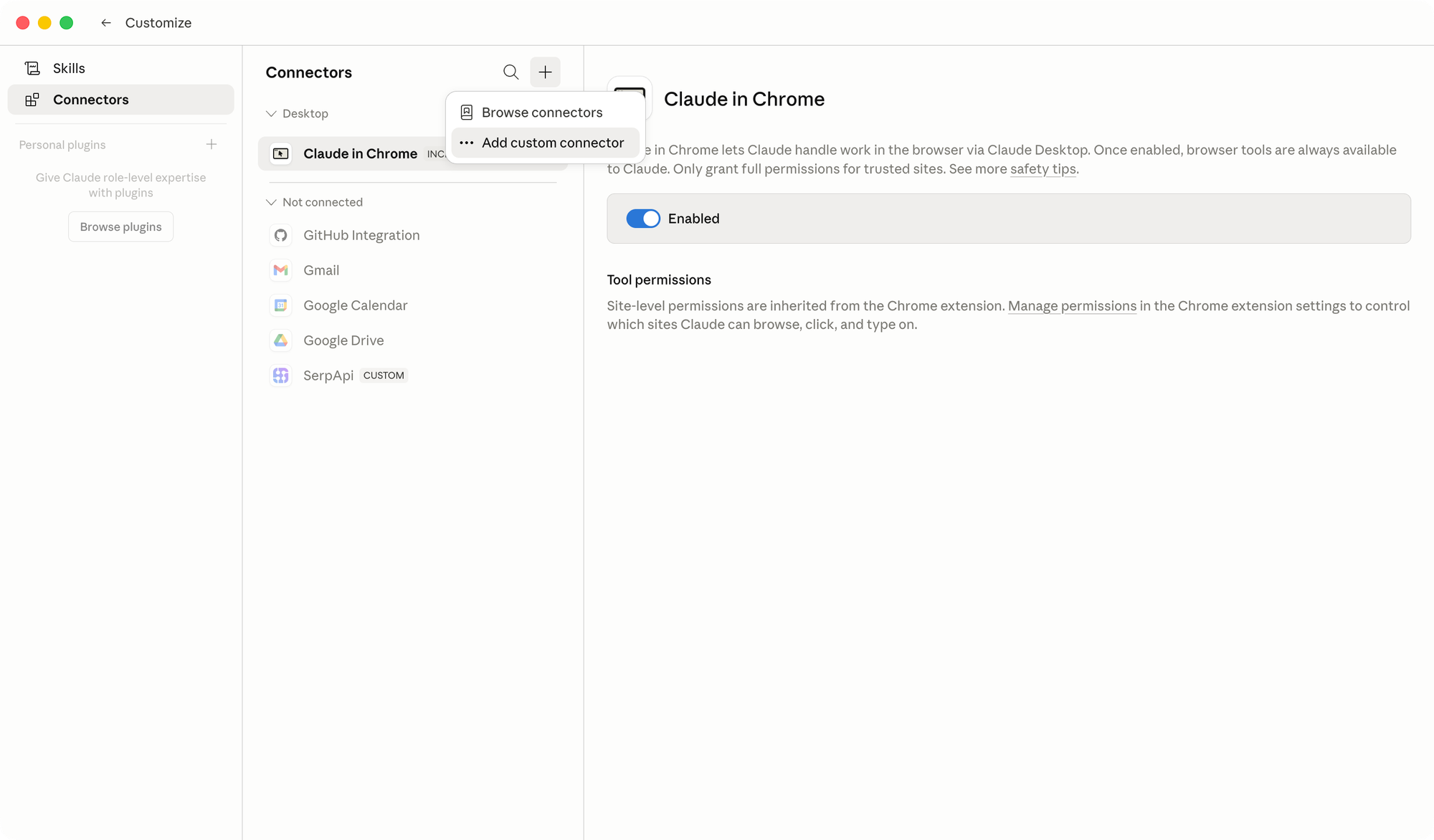
Don't see the "Add custom connector" button? Make sure Claude Desktop is fully updated. Custom connectors via remote MCP are available on free, Pro, Max, Team, and Enterprise plans, but older builds of the app may not show the button. Quit Claude Desktop completely and reopen it after updating.
Step 3: Add SerpApi as a Custom Connector
Click Add custom connector. A small dialog will pop up asking for two things:
- Name: type
SerpApi(This is just the label you'll see in Claude; you can call it whatever you want) - Remote MCP server URL: paste this exact URL, replacing the placeholder with the API key you copied in Step 1:
https://mcp.serpapi.com/YOUR_SERPAPI_API_KEY/mcpSo if your API key were abc123xyz, the full URL would be:
https://mcp.serpapi.com/abc123xyz/mcpClick Add.
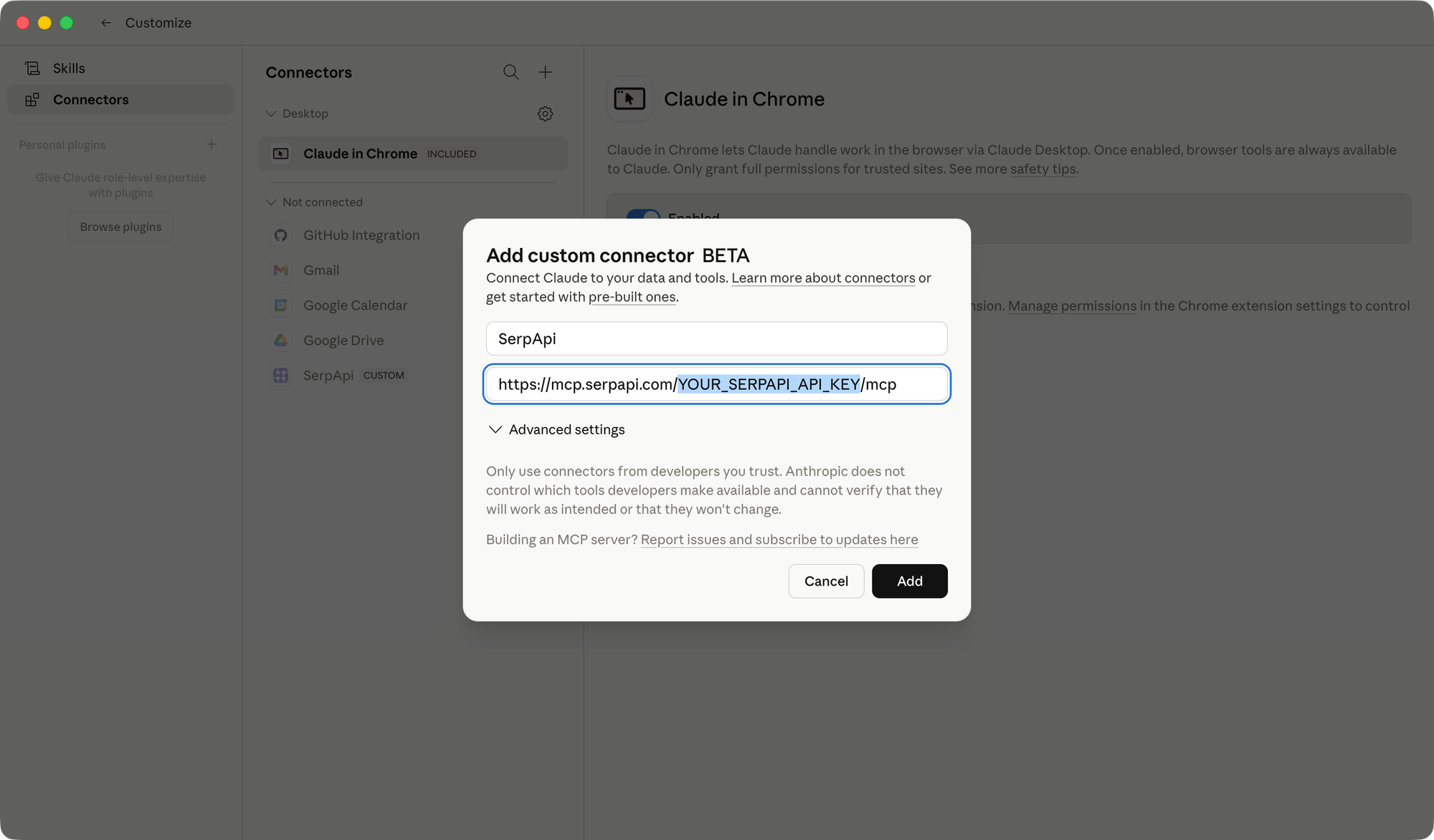
That's it. You don't need to edit any JSON files, run any terminal commands, or restart your computer. Claude will register the new connector immediately.
Step 4: Verify the Connection
Back on the Connectors page, you should now see "SerpApi" in your list of connectors. Open a new Claude conversation and look for the tools/attachments icon ("+" near the message box) — SerpApi should appear in the list of available tools you can enable for the chat.
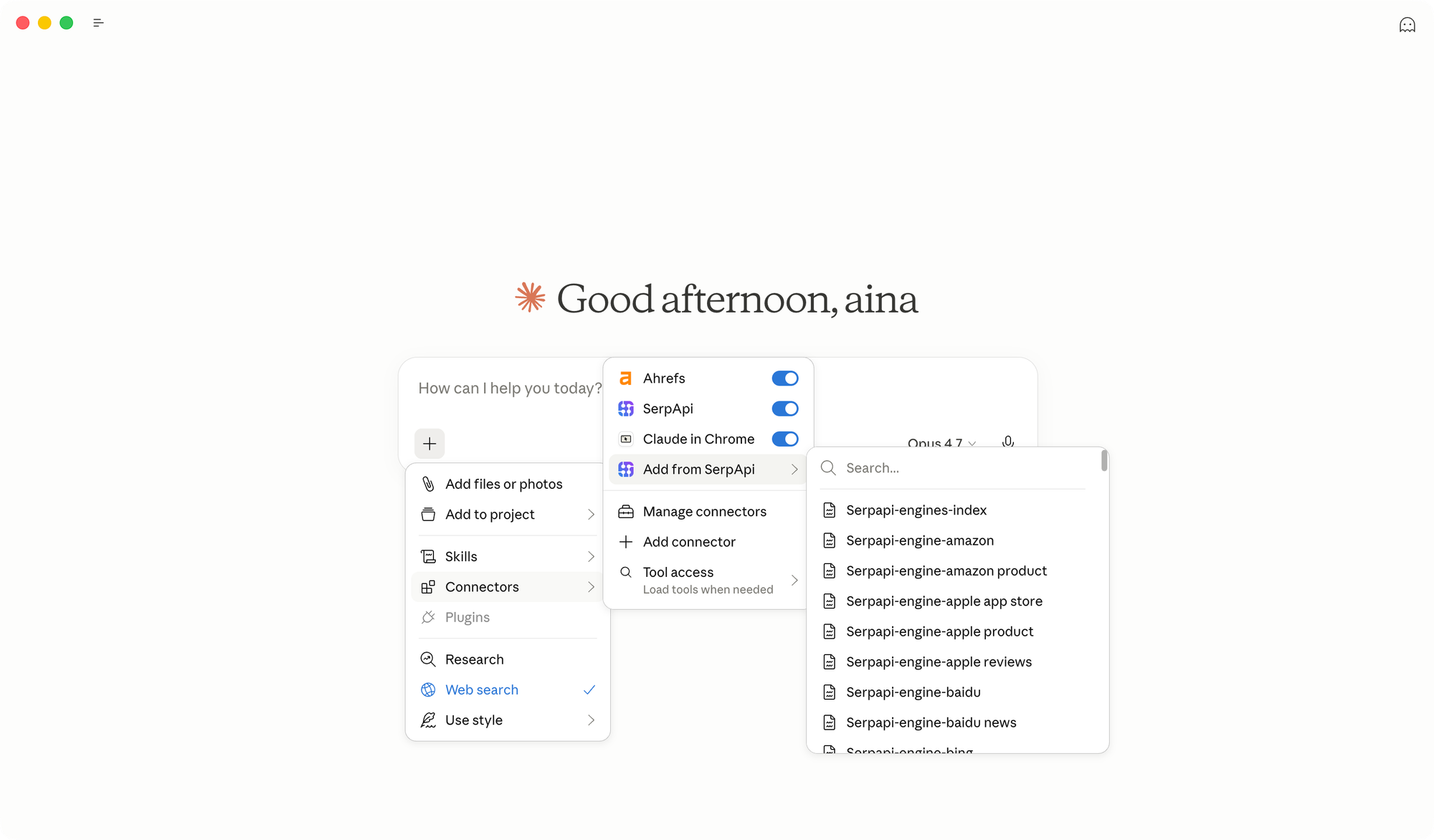
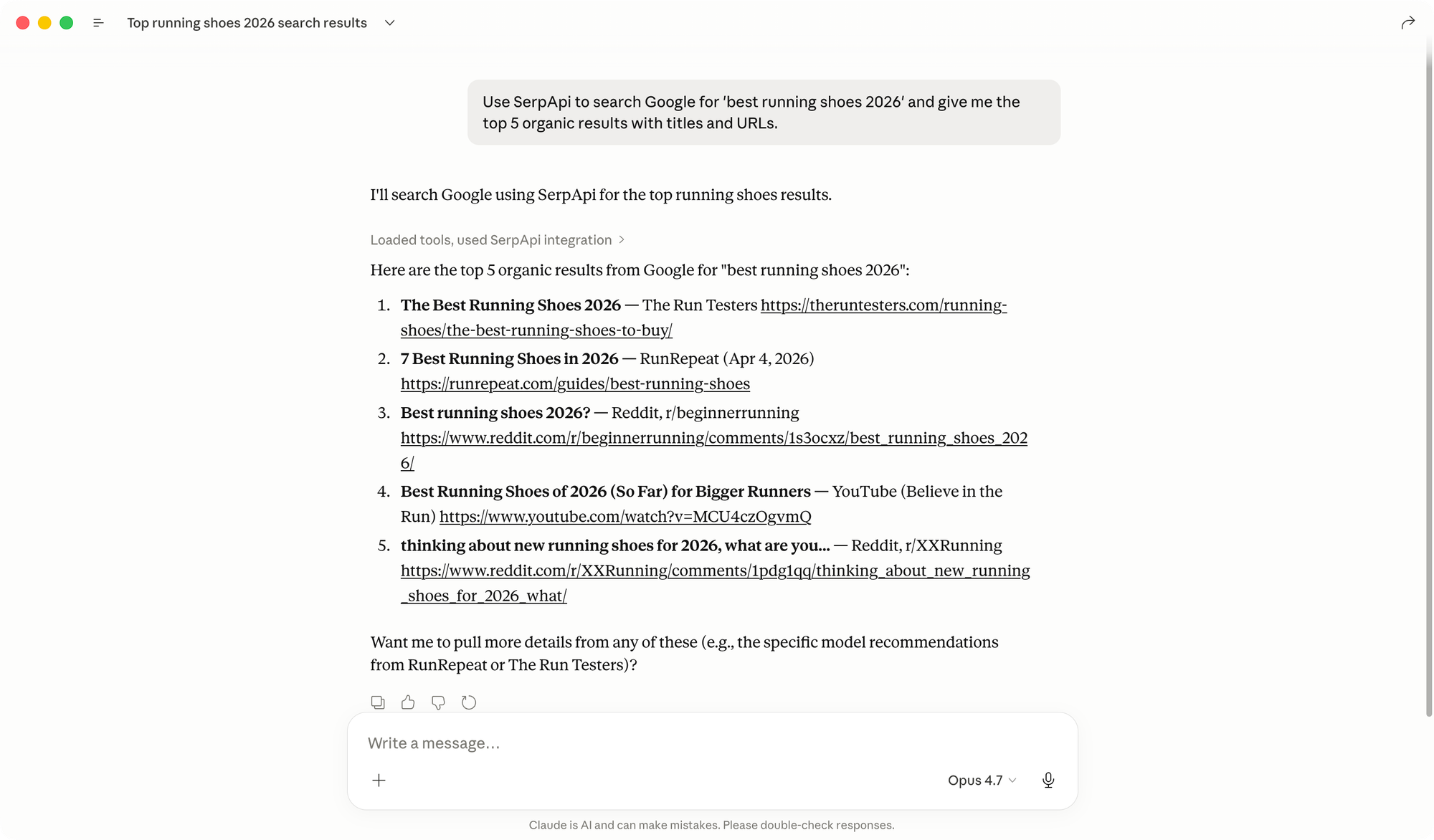
To test it, send Claude a simple prompt like:
"Use SerpApi to search Google for 'best running shoes 2026' and give me the top 5 organic results with titles and URLs."
If everything's wired up correctly, Claude will tell you it's calling the SerpApi tool, then return real, current SERP data, not a 2025 cached guess.
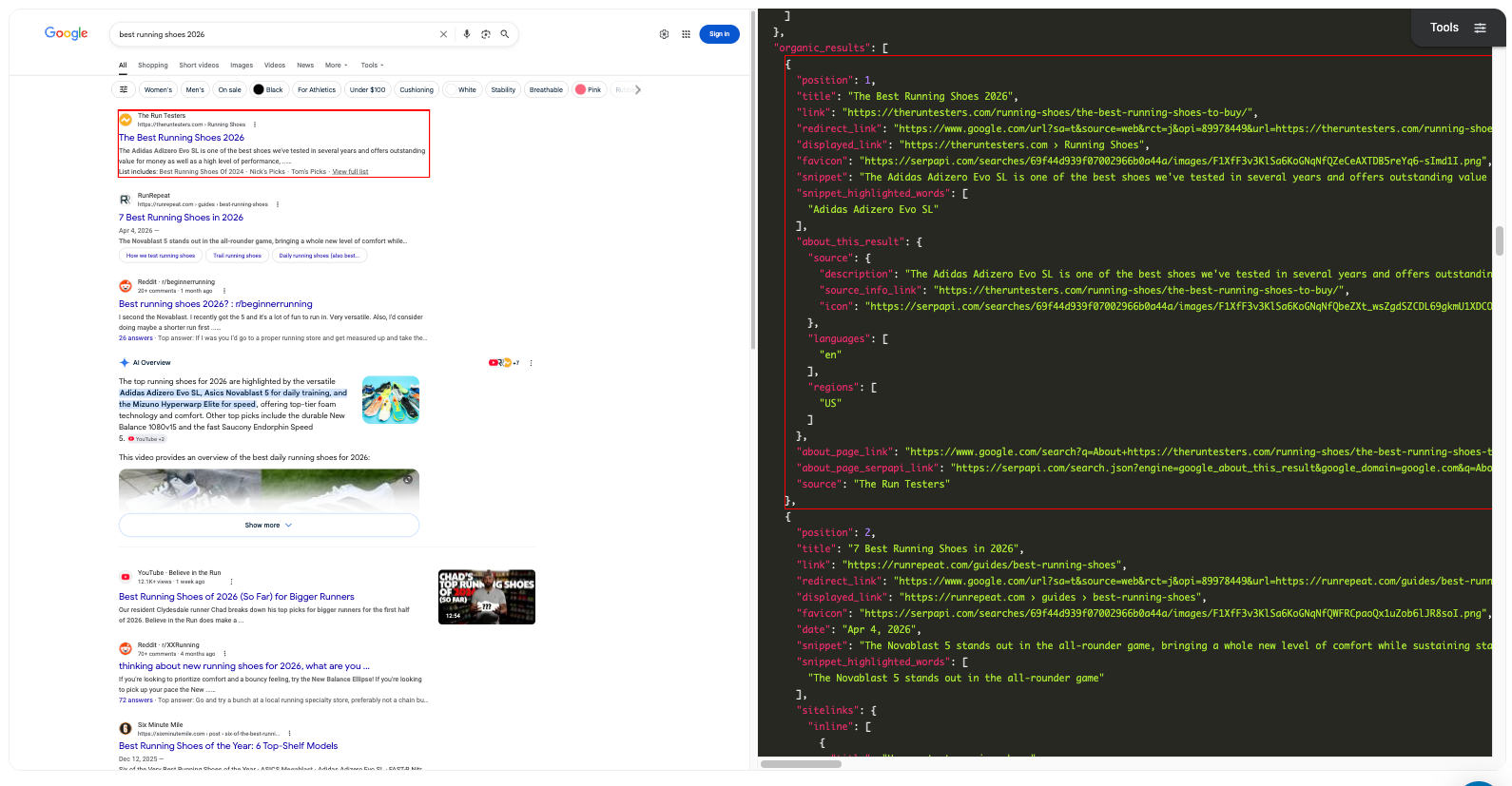
You can compare the result on Claude Desktop by checking your search history on serpapi.com/searches.
Five Ways Marketers Are Already Using This Setup
To save you the "okay, now what?" moment, here are five workflows that have been getting traction. We covered these in more depth in our post on the top 5 practical use cases for SerpApi MCP server in AI agents, but here's the short version tailored for marketing teams:
- Real-time SERP audits. Ask Claude to pull the top 10 results for a target keyword and analyze title patterns, schema markup hints, and what the competition is doing in featured snippets.
- Content brief generation. Have Claude pull People Also Ask questions, related searches, and the top 5 ranking pages for a keyword, then draft an outline that covers all of them.
- Brand monitoring. Run a Google News query for your brand or a competitor weekly, and let Claude summarize coverage, sentiment, and emerging narratives.
- Local SEO checks. Use Google Local results to see how your business ranks in the map pack across different cities — useful for multi-location brands.
- Ad copy and creative research. Pull Google Shopping or Google Ads-style results to see how competitors describe similar products, then iterate on your own positioning.
Power-User Tip: Get Better Tool Calls With Engine Schemas
SerpApi recently added a feature where the MCP server exposes the full parameter list (called "engine schemas") for each search engine, such as Google, Bing, YouTube, etcm directly to Claude. That means Claude can pick the right parameters automatically (e.g., specifying gl=us for US results, or tbm=nws for news) without you having to know SerpApi's syntax.
If you're curious how this works under the hood and how to nudge Claude toward higher-quality tool calls, we explained the mechanics in How to use SerpApi engine schemas in SerpApi MCP to improve tool call quality.
Troubleshooting: When Things Don't Work the First Time
A few common gotchas:
"Connector failed to connect" error. Double-check that you pasted your API key into the URL correctly and that there are no spaces. The URL must be in the exact format https://mcp.serpapi.com/YOUR_KEY/mcp — note the /mcp at the end.
Claude says it doesn't have access to SerpApi. In a new chat, you may need to enable the connector explicitly using the tools/attachment menu before Claude will use it. Some marketers also find it helps to mention "SerpApi" by name in the prompt for the first few queries.
You're hitting your search limit too quickly. The free tier covers 100 searches per month. If you're testing aggressively or running this for a small team, the paid plans start at a low price and unlock thousands of searches.
The connector worked, but the answers seem stale. Make sure Claude is actually calling the tool. In the chat, you'll usually see an indicator showing the tool was invoked. If Claude is just answering from memory, prompt it more directly: "Use the SerpApi tool to search Google right now for…"
Going Beyond the Desktop App
The setup we just walked through is the no-code path. If you (or someone on your team) eventually wants to embed this kind of live-search capability into a custom AI workflow, for example, an agent that does daily competitor monitoring and posts to Slack, the same SerpApi MCP works inside developer environments too. We have walkthroughs for two of those:
- Integrating SerpApi MCP into Your Developer Workflow: covers Cursor, Claude Code, and other AI-assisted IDEs.
- Build an AI Agent with the Claude Agent SDK: for when you're ready to build something programmatic on top of Claude.
For the bigger picture of how the MCP server fits into SerpApi's product, the original launch announcement is still the best one-page summary.
Wrapping Up
Connecting SerpApi MCP to Claude Desktop is one of the lowest-effort, highest-leverage moves a non-technical marketer can make right now. Five minutes of setup buys you live access to Google, Bing, YouTube, and dozens of other engines from inside the same chat window where you're already drafting briefs, brainstorming campaigns, and analyzing competitors.
Once it's wired up, the limit is your prompts, not your tooling.